To create an evaluation summary, start by clicking on the Property Search tab. Enter your subject address and click SUBMIT.
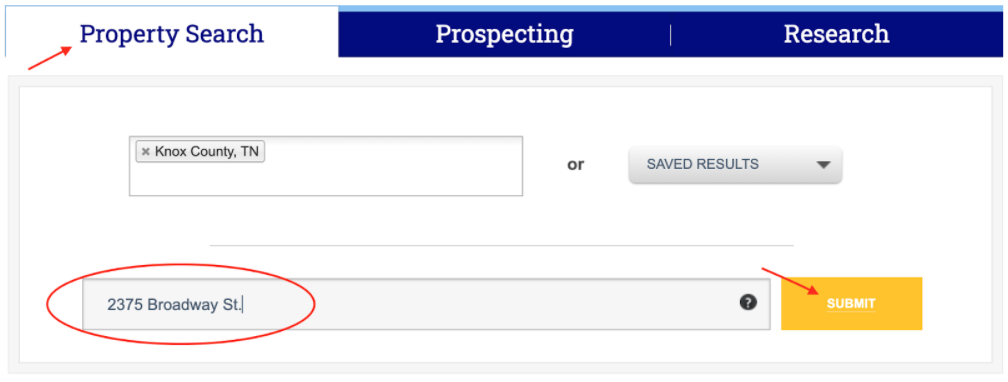
With the property report open, you will be able to see the Comparables and Custom Comparables tabs at the top of the screen.

Custom Comparables Evaluation Summary:
To create a summary, you will start by clicking on the Custom Comparables tab. Enter the county(ies) you wish to pull from. You may choose up to five. Once you have done this, you may now enter additional search criteria, i.e., location, property value, date-of-sale, property type, land type, square footage, etc. It’s best practice to use no more than five search criteria.
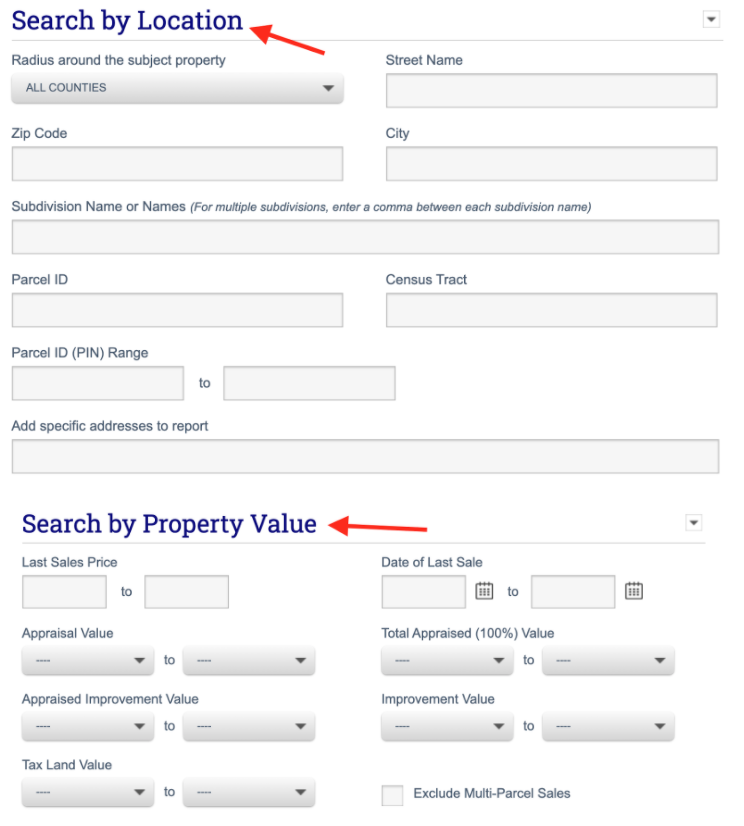
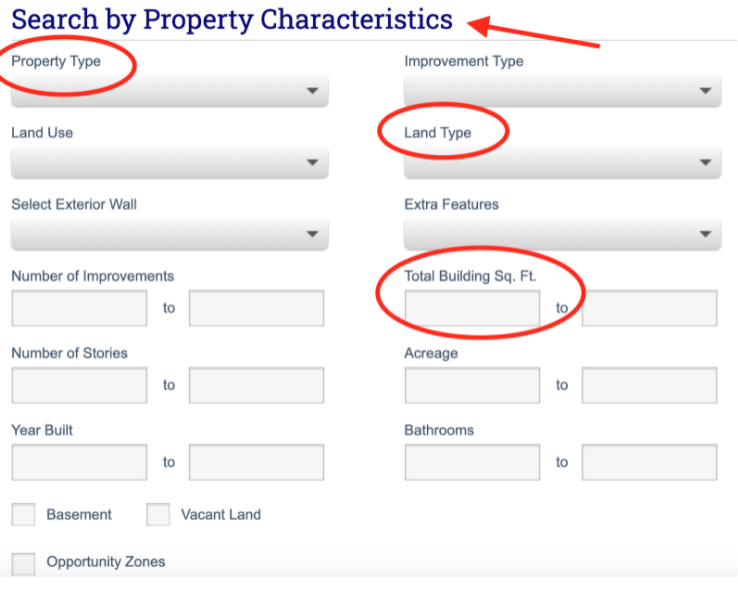
Once you’ve entered the desired property characteristics, click SUBMIT to create a list of comparable properties. Next, select the properties you’d like to add to the property report.
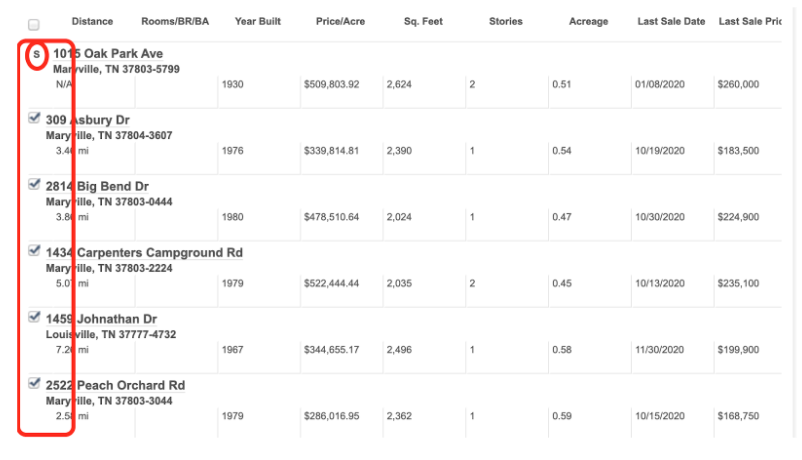
Now that you’ve selected the properties to compare, you will want to create your summary. First, select the Keep Checked button at the bottom of the screen. Then, select Comparables Report.

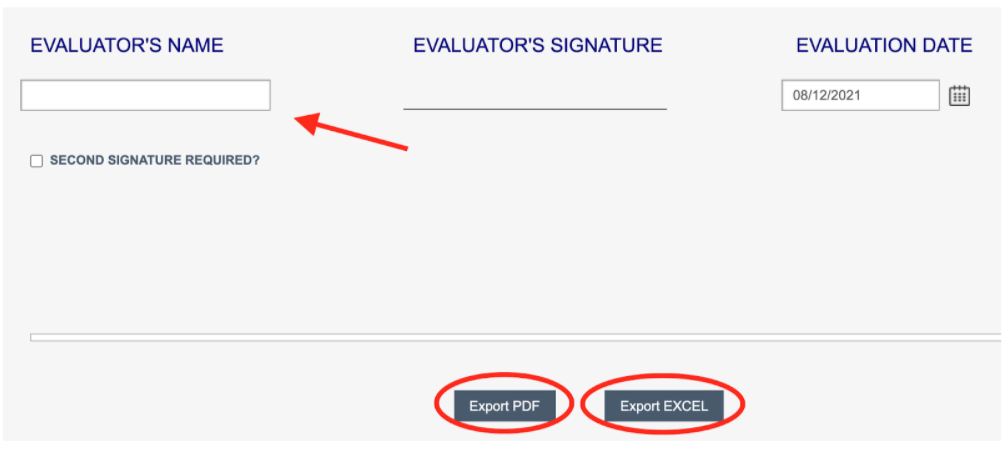
Once a report has been populated, you will have the opportunity to add any additional notes to your report that may be helpful. A signature will be required at the end of the summary. At this point, you can now choose Export PDF or Export Excel to export the final report.
Video Tutorial: We've created a video tutorial on How to Create an Evaluation Summary. Check it out below.