When you make an edit to the editable fields, only you (as the account manager) will be able to see your changes. They aren’t visible by other users, and you can revert back to the original value at any time.
While you have a property report open, scroll down to the Property Characteristics: Building section. You will see a variety of sections that feature a pencil icon, which indicates that these values are editable.
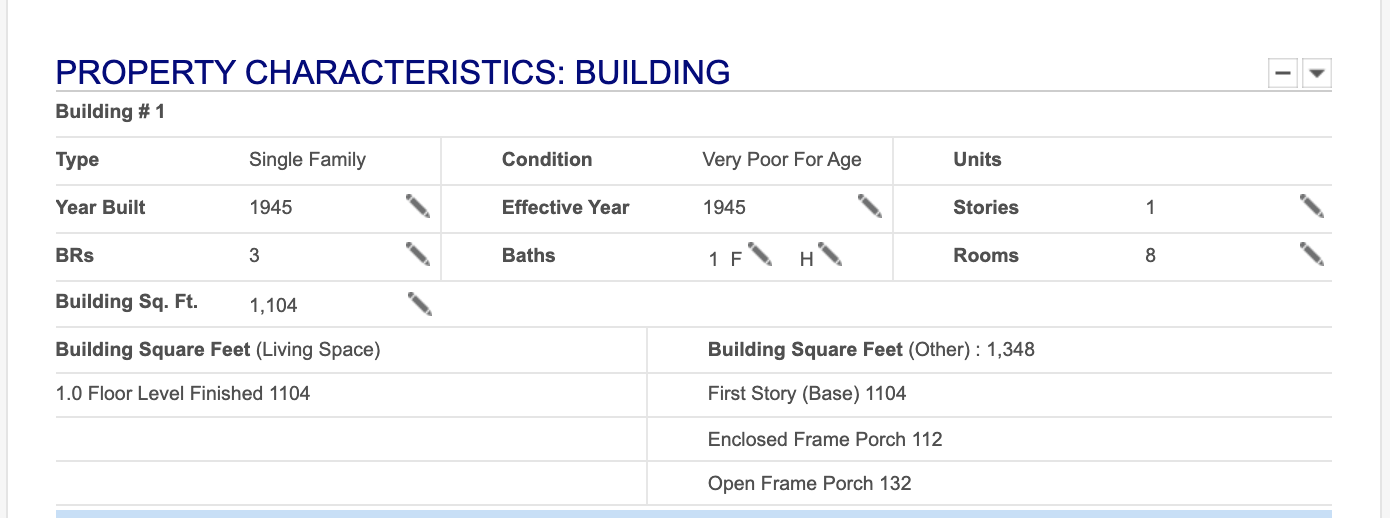
You can click on any of the boxes or pencil icons and you will be able to type a new value in the box. Click enter or TAB to save your values. You can click escape (ESC) to cancel.
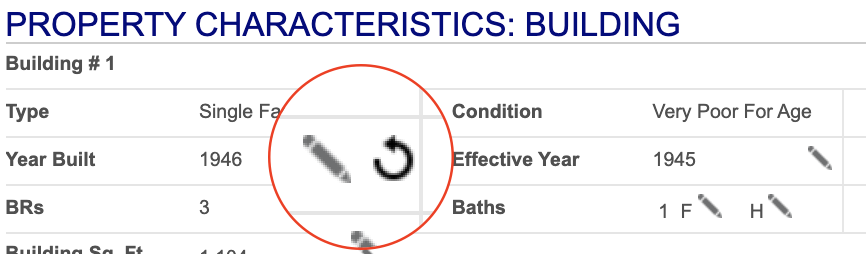
If you need to revert back to the original value listed in your report, click on the circular arrow icon located right next to the pencil icon. Your number will automatically revert to the original value.
You can adjust the acreage value by navigating to the Property Characteristics: Lot section. You will see the pencil icon indicating where to click to update the acreage value.

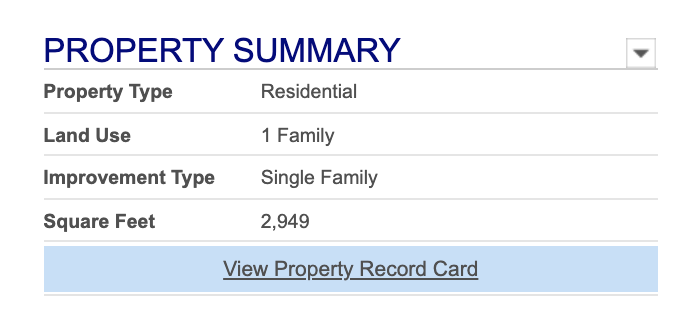
The changes you make to these editable fields will also impact a few other areas of your Financial Suite. For example, if you’ve made adjustments to the Square Feet, your new value will also appear in the property summary that is shown at the top of your report.
Your value updates and changes will also be reflected in your Comparables listings. As a reminder, these changes are not made available or seen by other Financial Suite users.