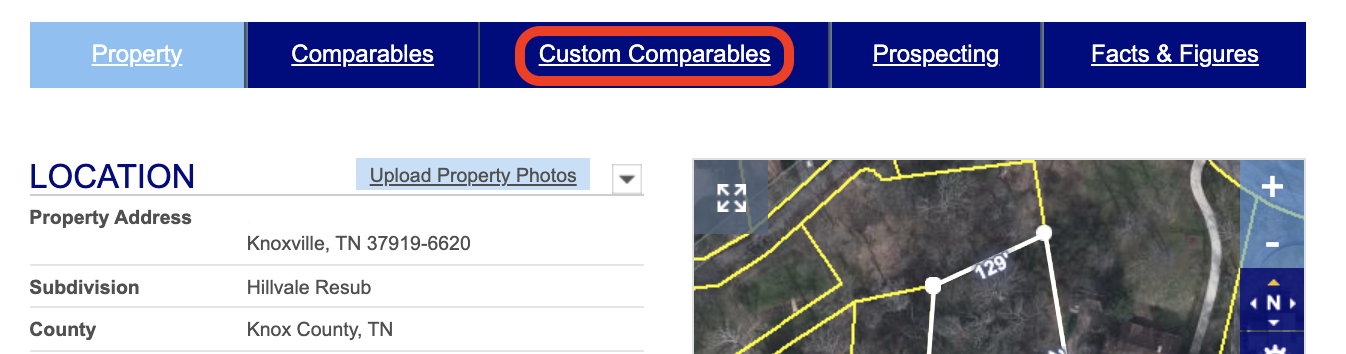
Once you’ve searched your subject property, click on Custom Comparables in the blue bar.
Choose between five to seven criteria within any section. This will optimize the system to produce an accurate, reliable report.
You can select criteria by location, value or by characteristic attributes. For example, you may want to add a specific address to include in your query and/or a search radius of up to 10 miles from your subject property in the Search by Location section.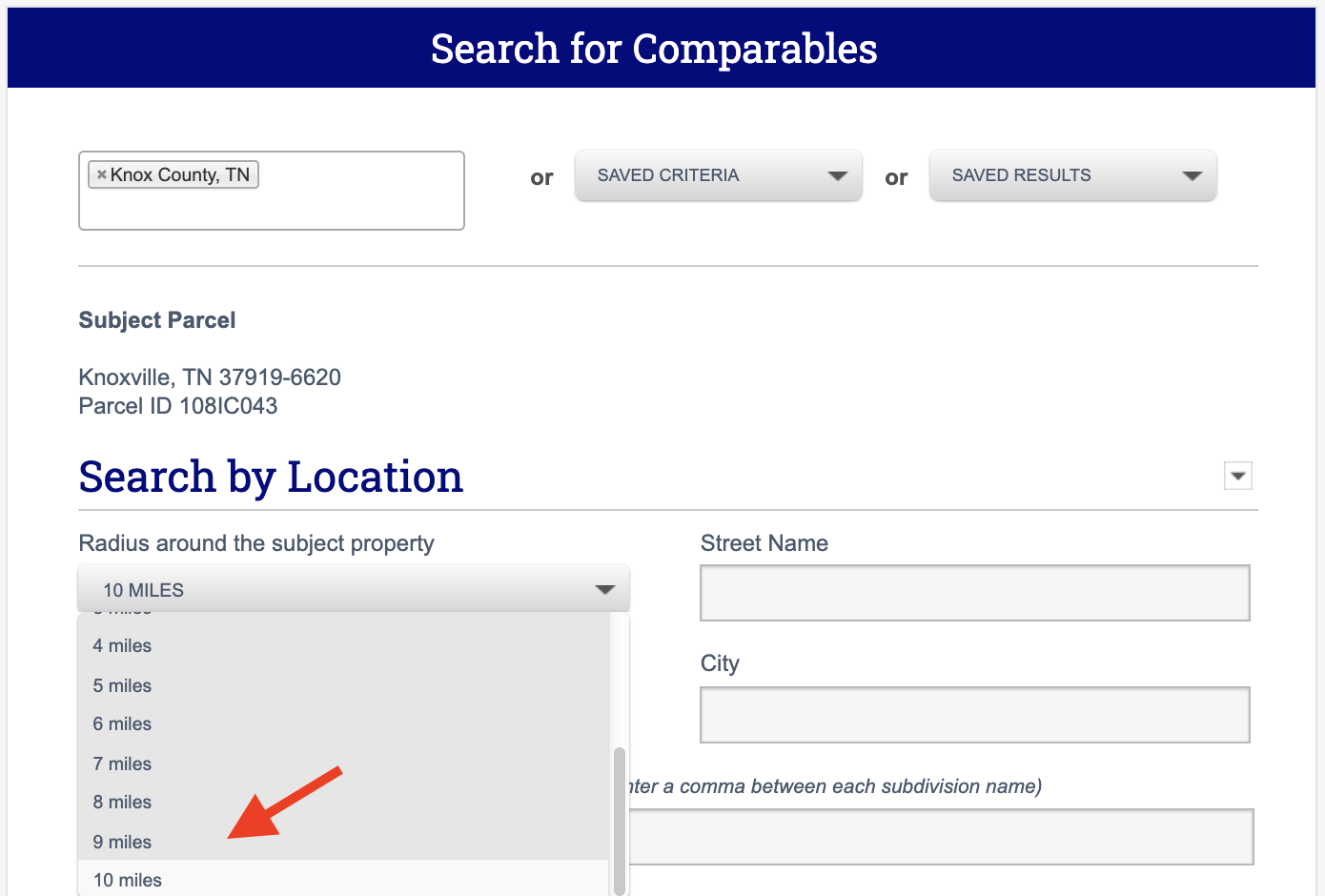
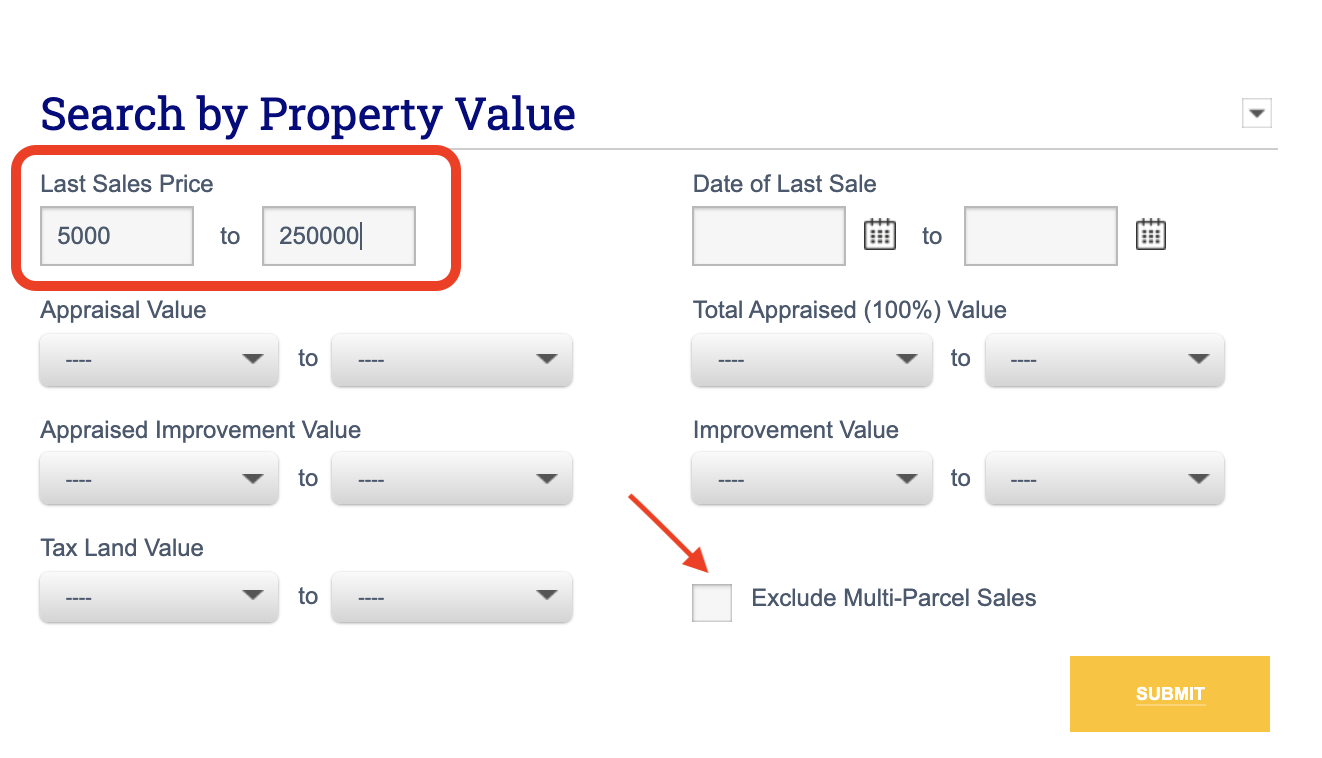
You may also want to include a minimum or maximum home sale price and/or a last sale date from the Search by Property Value section. You can check the “Exclude Multi-Parcel Sales” box so that you are not locating sales where several parcels were a part of one sales transaction.
Additionally, in order to eliminate quitclaim deeds or a transfer of name with a low or no sales price, you will always want to include a minimum sales price in your query so that you can ensure that your report will produce accurate comparable information.
Lastly, you may want to add any extra features the property may have. You can select the feature under Extra Features. You can change many criteria, such as square footage range under Total Building Sq. Ft., as you will see below.
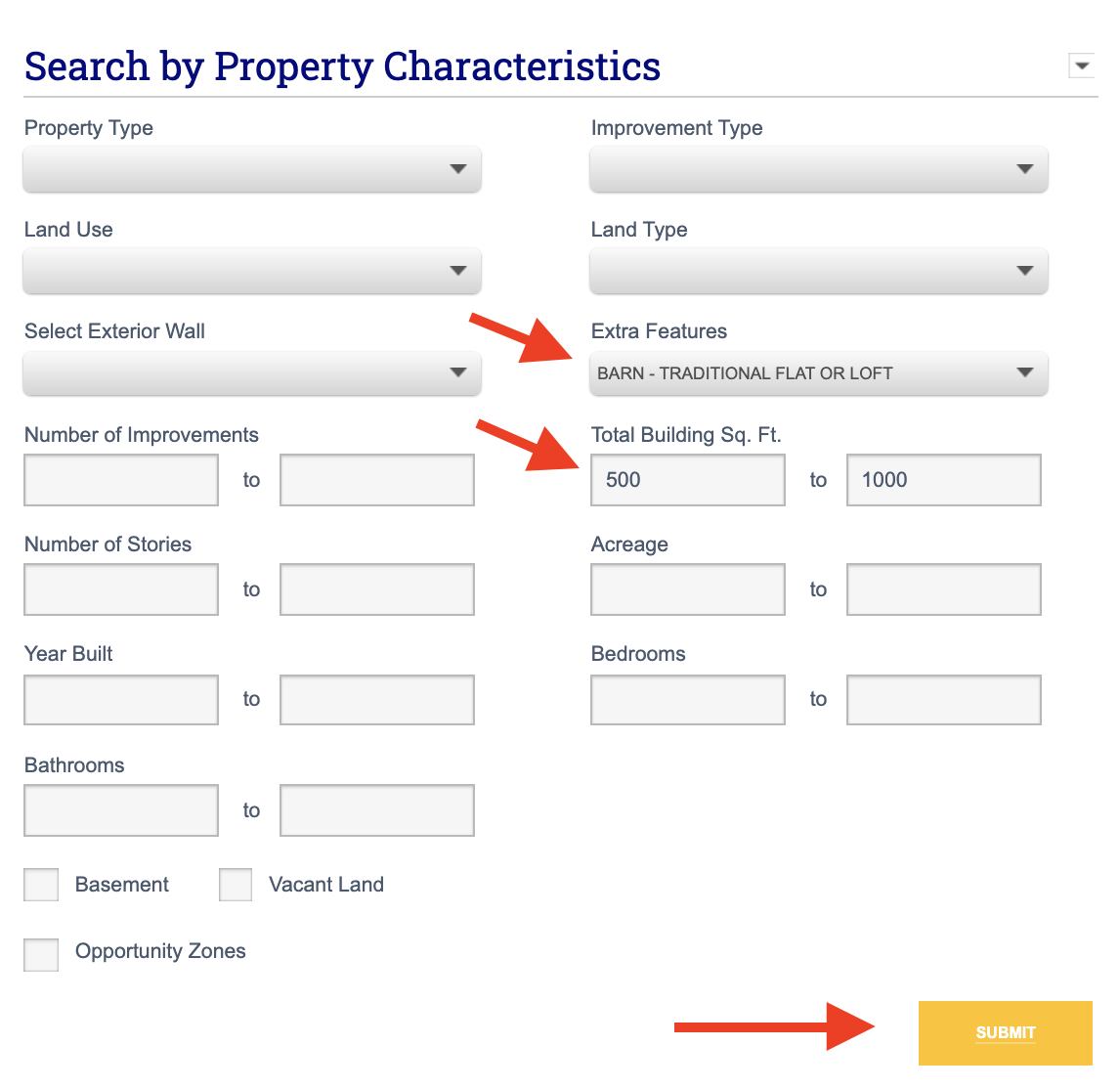
Finally, tap the word SUBMIT in either section once you have added all of your criteria.
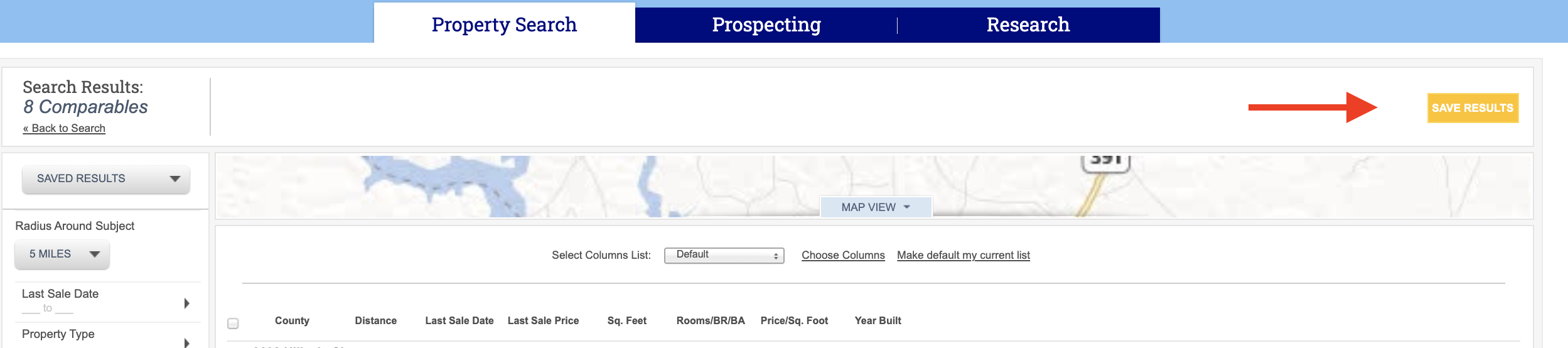
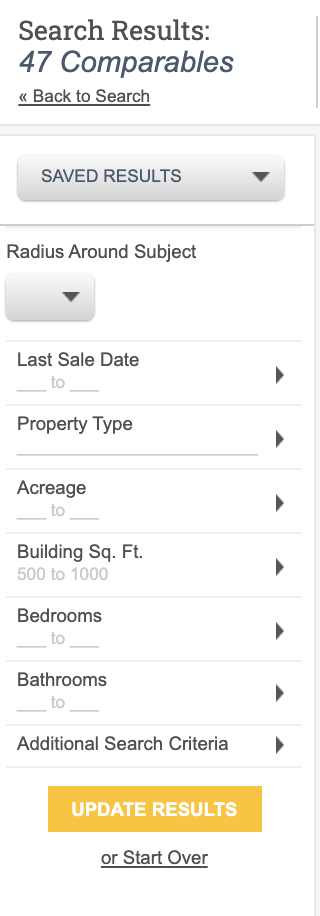
From the results window you can modify the criteria on the left side of the screen if you are not satisfied with the number of results available.
For example, you may want to change your search radius from 10 miles to 5 miles to reduce the number of comparables. Make your selection change(s), and click UPDATE RESULTS.
To save this search criteria and results, click on the SAVE RESULTS button in the upper right corner.